• Link to Youtube
  • Link to LinkedIn
  • Link to Mail
  • Back to ApliCAD.com
Llámenos +34 964724870
BIM ApliCAD
  • Home
  • Products
    • UpdateBIM Private Cloud
      • Ayudamos a las organizaciones a la estandarización de los objetos BIM que se usan tanto para los colaboradores internos como externos
      • Share
      • Privately share your BIM components and make sure everyone is using the latest versions.
      • Docs
      • Add any type of document to the families to be consulted from the design environment.
      • UpdateBIM Private Cloud Price
    • UpdateBIM Manufacturer
      • We assist creators of building products and interior design products in expanding their professional reach, increasing their involvement in projects and making more strategic choices.
      • Publish
      • Make your products and information globally accessible
      • BIM content development
      • Transform your products into digital with the support of our expert content creation team.
      • Price UpdateBIM Manufacturer
    • CTE HULC
      • Plugin in Revit to export 3D model information including materials to the HULC calculation program.
      • Price CTE HULC
  • Projects
  • Downloads
  • Documentation
  • News
  • Contact
  • English
    • Español
    • English
  • Click to open the search input field Click to open the search input field Search
  • Menu Menu

News

1
  • News 3.3.2

Modify parameter values

4
  • Change Parameter Value from Web Interface
  • Which values can be modified
  • Mass Update
  • New Mass Parameter

First Steps

3
  • First access to UpdateBIM
  • Free UpdateBIM License
  • Having a business account

Configuration

3
  • Login – Registration in the plugin from Revit
  • Change the plugin interface language
  • Email sent to your account manager

Cloud Access

10
  • Use the filter to find the right family
  • Select a family to insert it into the project
  • Insert only the selected type
  • Use families with types in a .txt file
  • Insert Groups
  • Use tags to classify
  • Access to the Web environment from Cloud Access
  • Insert Families from the Web Environment
  • Access Additional Information Before Inserting
  • Use of Folders

Analyze Project

7
  • Analyze Project
  • Update the selected family
  • Update All
  • Select and Locate Families in the Project
  • Special Case with Groups
  • Inserting Families from the Analyzer
  • Using Filters to Enhance Analysis

Content Manager

10
  • Modify the image displayed for the family
  • Content Manager
  • Adding a New Family to the Catalog
  • Update Existing Family
  • Add a Group to UpdateBIM
  • Update a Group in UpdateBIM
  • Bulk Upload
  • Create Folders from Revit
  • Publishing from the Web Environment
  • Delete a Family

Materials

4
  • Add Finishing Materials
  • Placing Materials on Floors, Walls, and Roofs
  • Changing Materials
  • Analyze Materials Included in the Project

Web environment

12
  • Login – Registration from the Web Environment
  • Recover Password
  • Payment Account – Manufacturer
  • Payment Account – Private Cloud
  • Create and Manage Folders
  • Catalog and Multilingual Information
  • Create and Manage Tags
  • Invite Users in Bulk
  • Generate Links for Use on Other Websites
  • Using the Shared Parameters File
  • Usage Statistics
  • Economic Management of the Catalog

Documents

2
  • Add Documents Associated with Families
  • Use Type Information
View Categories
  • Inicio
  • Documentación
  • UpdateBIM
  • Content Manager
  • Modify the image displayed for the family

Modify the image displayed for the family

By default, when a family is added or modified in UpdateBIM, the image that is displayed is the one automatically generated from Revit.

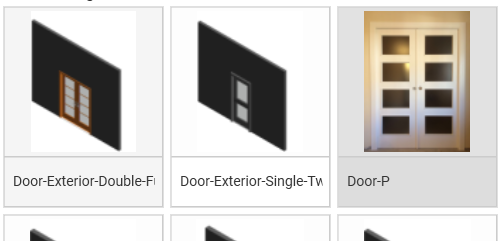
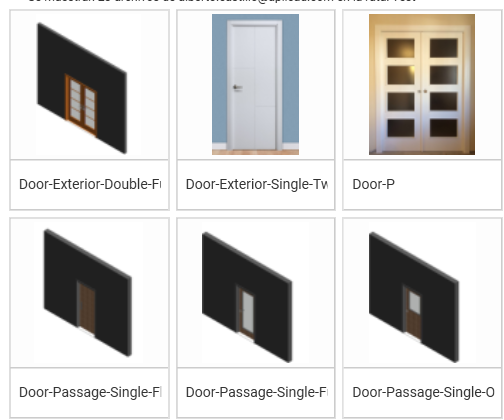
In many cases, this image may not be sufficiently representative. Moreover, when there are several very similar elements, it becomes difficult to distinguish their differences using only this automatic view, as can be seen in the following example:
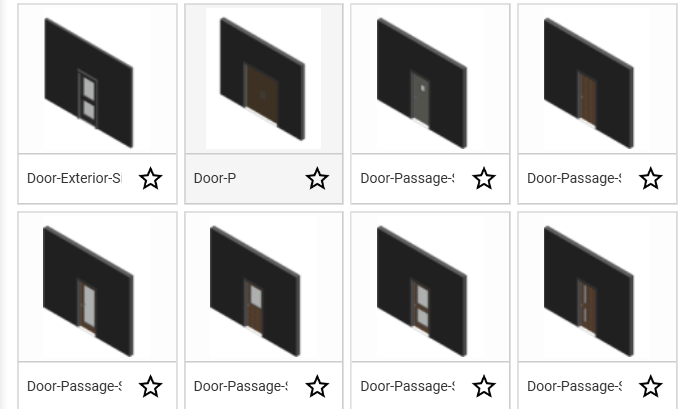
Image of different door types.

To modify the displayed image and thereby improve usability, there are two ways to do so:

  • From the Content Manager
  • From the web interface

From the Content Manager #

When the family is created, or when it is edited later, it is possible to define or update the image associated with it.
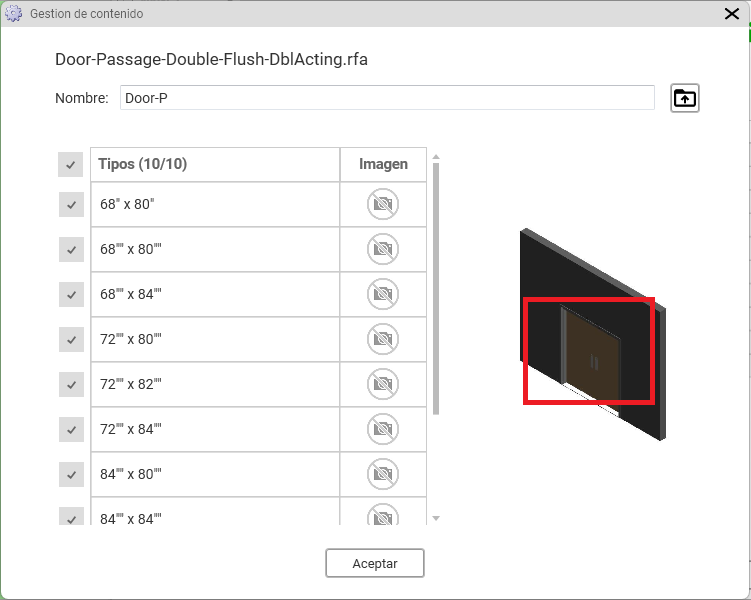
We will be prompted to select an image from our computer, allowing us to add any type of image: from more technical images that provide greater detail, to images taken from the manufacturer’s catalog, as shown in the following image:
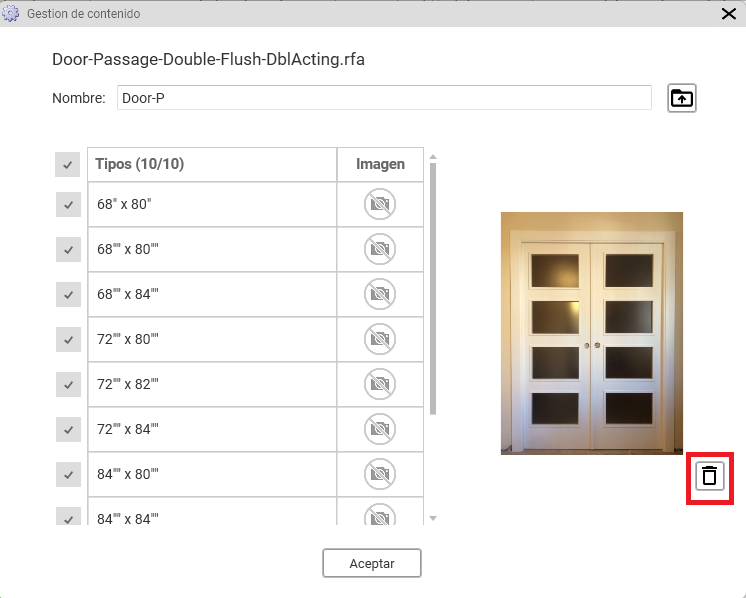
As can be seen, a new icon appears—highlighted in red in the image—which allows the custom image to be removed and reverts back to using the image automatically generated by Revit.

The image modification feature is available for all elements that display the camera icon, allowing specific images to be added to each type.

The final result is as follows:
Generation from the Web Interface #

From the web interface, the system works in a similar way, for example:
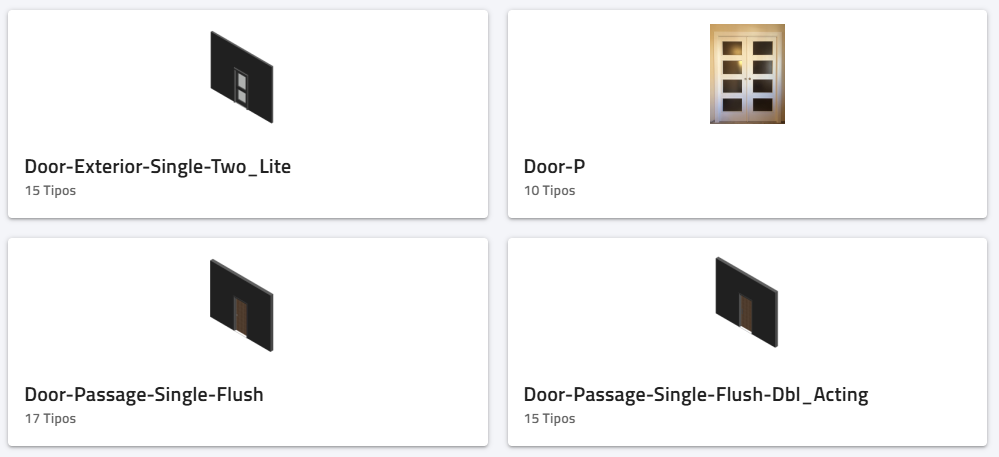
For example, we can double-click on the Door-Exterior_Single_Two_Lite family and access all of its information, as shown in the following image:
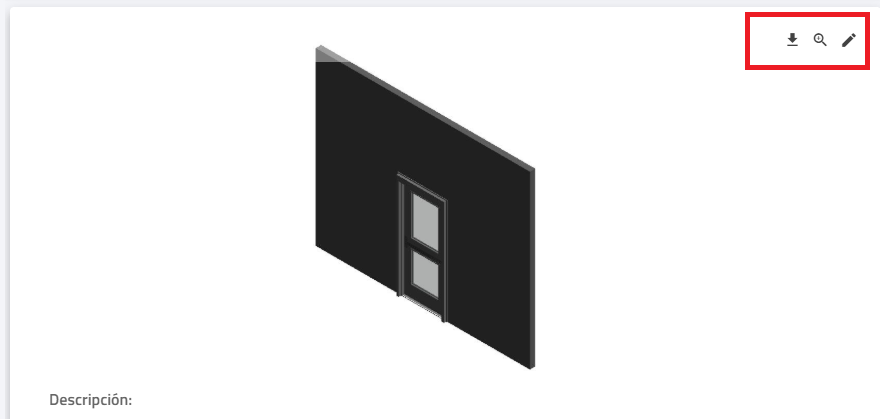
When hovering the cursor over the image, the icons highlighted in red are activated, as shown in the image, allowing the displayed image to be modified.

In this way, it is possible to select an image from the computer to replace the existing one.

For example:
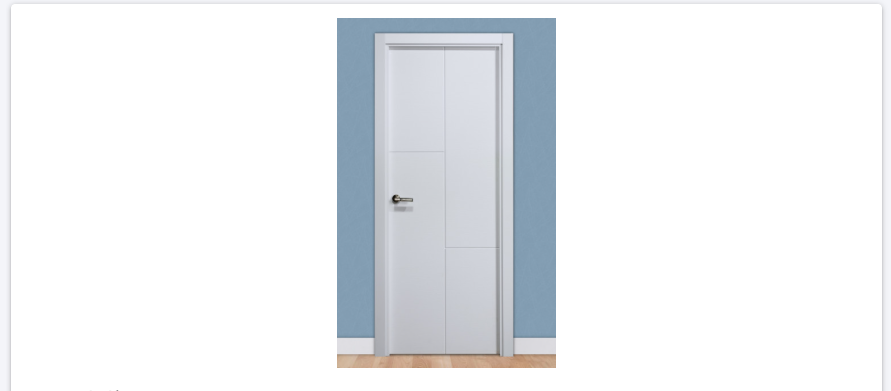
The resulting appearance in Revit is as follows:
Updated on 22 de January de 2026

What are your Feelings

  • Happy
  • Normal
  • Sad

Share This Article :

  • LinkedIn
Content Manager
Tabla de contenidos
  • From the Content Manager
  • Generation from the Web Interface
Acces to UpdateBIM WEB Portal
Privacy & cookies
Legal Notice

Where we are

Maria Teresa González, 26
12005 – Castellón – Spain
+34 964724870
aplicad@aplicad.com

© Copyright - ApliCAD
  • Link to Youtube
  • Link to LinkedIn
  • Link to Mail
Link to: News 3.3.2 Link to: News 3.3.2 News 3.3.2
Scroll to top Scroll to top Scroll to top